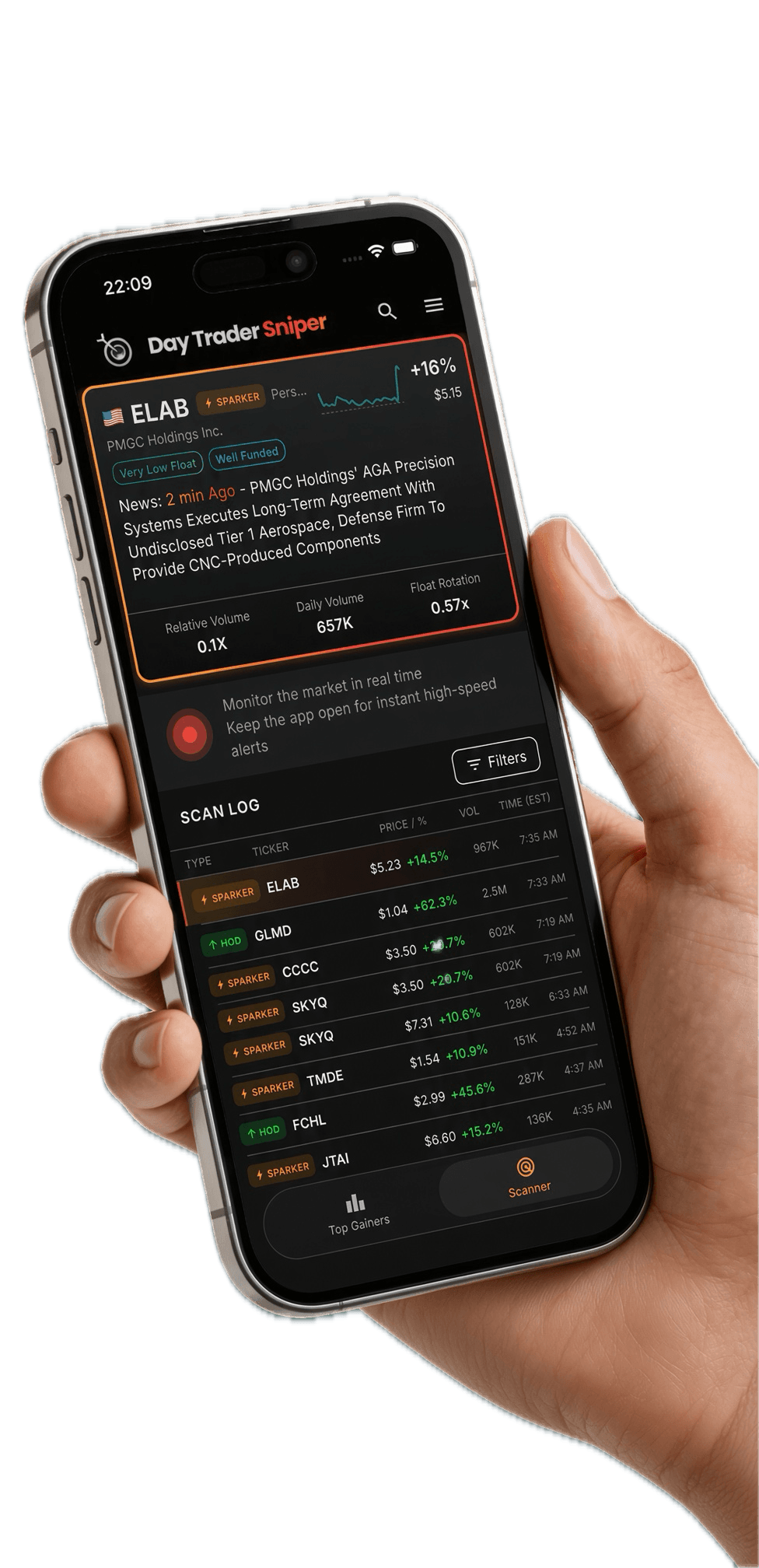
Help & Tutorials · Getting started
How to get started
Open the app, find Home, Top gainers, and the Scanner, and start a trading session on iPhone or Android if you want alerts while the app is in the background.
Open Day Trader Sniper, find the main screens, and start a trading session on iPhone or Android if you want alerts while the app is in the background. The app surfaces data and checks the rules you set. It does not tell you what to buy or sell, and it does not guarantee a result.
This article covers how to open the app after onboarding, how to move between Home, Top gainers, and the Scanner, and how to start a trading session on a phone. For how to read the lists in more detail, see How to use the Scanner and Scan Log. For how to write your rules, see How to use the Entry Checklist.
Applies to iPhone, Android, and the web app.
Before you start
- Create an account and finish onboarding. You can set your Entry Checklist during the product tour, or leave it empty and add rules later.
- Alerts arrive when the app is opened or when the user starts a trading session. Trading sessions and push notifications are available on iPhone and Android, not in the web app.
Open the app
- Sign in and go to Home. That is the first screen after onboarding.
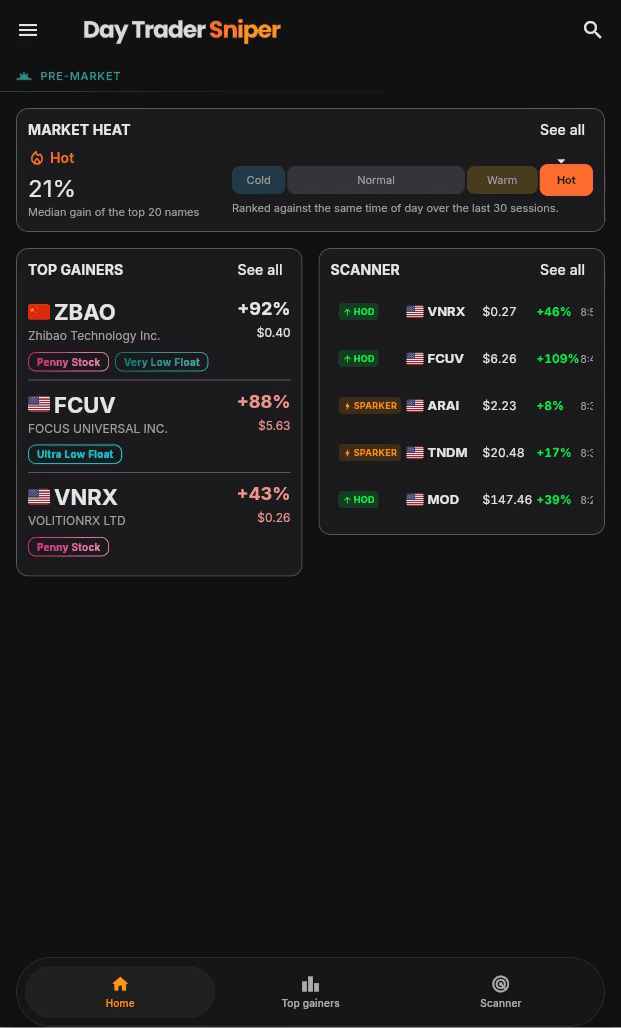
- On a phone, use the bottom bar: Home — a short preview of Top gainers and the Scanner, plus Market heat. Top gainers — the full live list of names moving up. Scanner — the full Scan Log of Sparker and HOD alerts.
- On Home, you can also tap See all on the Top gainers or Scanner section.
- Tap a ticker to open its Stock Card.
On a wide or desktop layout, choose Top gainers or Scanner from the left menu. The Stock Card can open beside the list.
A session label under the header shows PRE-MARKET, MARKET OPEN, POST MARKET, or MARKET CLOSED.
Find your way around
Market heat, on Home, is a Cold, Normal, Warm, or Hot reading of the median gain of the top 20 names, ranked against the same time of day over the last 30 sessions. On a phone, tap Details on that card to open the Market Heat page. On a wider or desktop layout, the control is See all. The Market Heat page repeats today's reading, shows how heat moved through the day, and lists recent sessions. If the market is closed, it shows the last 5 sessions instead of today.
Top gainers is a live board of names moving up. Each card can show the ticker, price, percent change, and related context when it is available. Your Entry Checklist score can appear on the card, but the list itself is not filtered by those rules. If the market is closed, the list may be empty until the next session. Being on this list is not the same thing as receiving a Sparker or HOD alert.
The Scanner tab shows the SCAN LOG: Sparker and HOD alerts that already fired, newest first. News appears as icon chips on each row. For how to read the log, adjust columns, and tap a news chip, see How to use the Scanner and Scan Log.
To set or change your rules, open Entry Checklist. On a phone, open the menu at the top left (or Profile) and tap Entry Checklist. On a wide or desktop layout, choose Entry Checklist from the left menu. The checklist starts empty until you save rules. A common five-rule starting point is Price, Float, Relative volume, News, and Min change. See How to use the Entry Checklist.
The same help articles are also available in the app. On a phone, open the menu at the top left and tap Help & Support. On a wide or desktop layout, choose Help & Support from the left menu.
Start a trading session on iPhone or Android
Use a trading session when you want alerts while the app is in the background. Alerts arrive when the app is opened or when the user starts a trading session. On the web app, keep the tab open; trading sessions and push notifications are not available there.
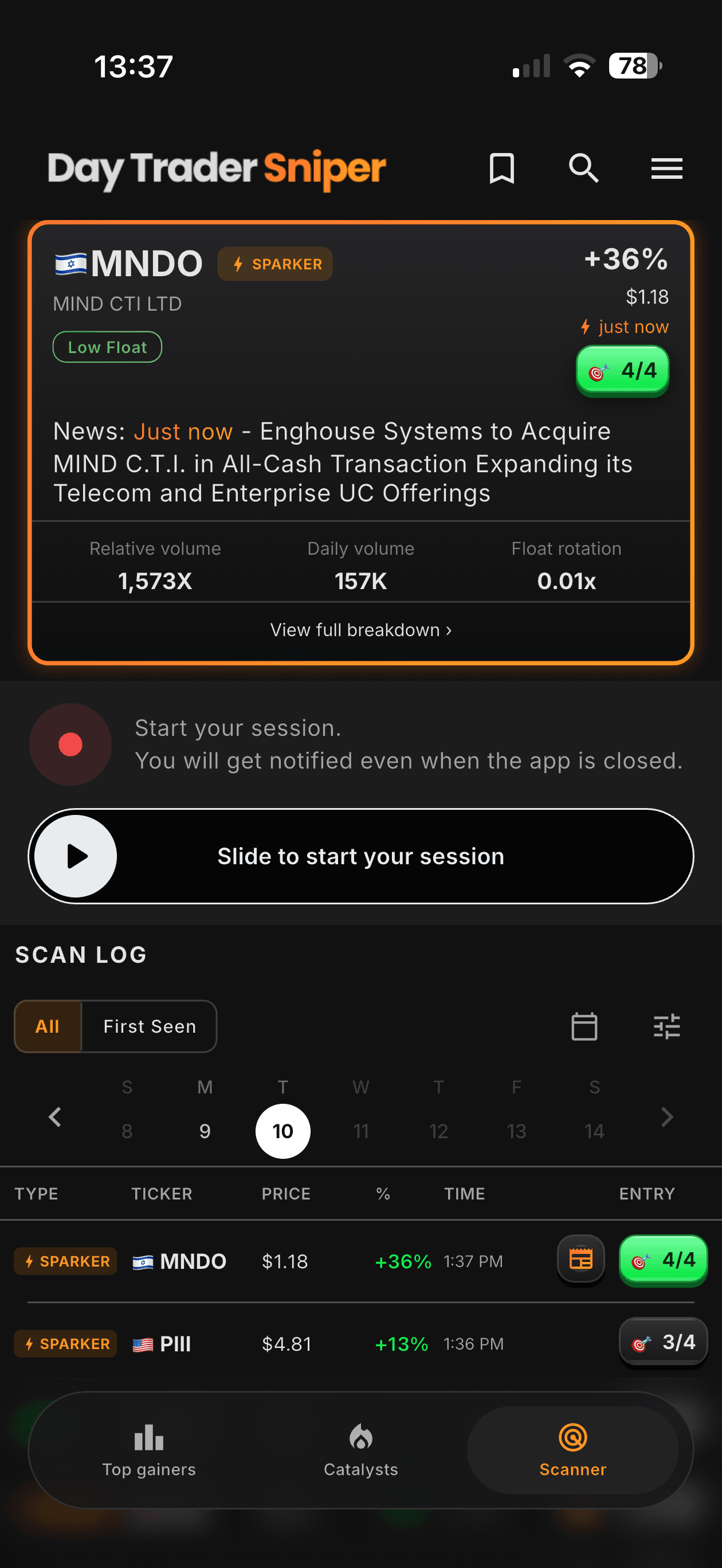
- On iPhone or Android, open the Scanner tab. The session control sits at the top, above the Scan Log.
- When the market is open, the banner reads Start your session. and You will get notified even when the app is closed.
- Slide Slide to start your session.
- The first time you start a session, your phone may ask for permission to send notifications. Use the system prompt; do not look for a separate in-app permission screen.
- If you have not saved any Entry Checklist rules, a sheet opens titled You will get every single alert. You can tap Set my rules or Start anyway.
- After the session starts, the start banner is gone. The control becomes Slide to end your session. The app does not show a remaining-time readout.
- You can now leave the app. Alerts can still arrive while the app is in the background.
- When you are done, return to the Scanner tab and slide Slide to end your session.
A session ends when you slide Slide to end your session. It also ends on its own when the market moves between PRE-MARKET, MARKET OPEN, and POST MARKET, and when the market closes. If you still want alerts in the background, slide Slide to start your session again in the new session.
If the market is closed and no session is already running, the start slider is hidden. In its place you will see Market closed. and Sparker is standing by for the next premarket session.
A simple first session
- Sign in and finish onboarding. Set and save your Entry Checklist now, or leave it empty and add rules later.
- Open the app, or start a trading session on iPhone or Android, so alerts can arrive.
- Start on Home, then open Scanner or Top gainers as you need them.
- When a Sparker or HOD alert arrives, open the Stock Card.
- Read the headline and the catalyst line when it is shown, then the numbers, then your checklist score. The catalyst line describes the news. It is not a recommendation.
- Decide for yourself, or pass and wait.
FAQ
When do I get alerts?
Alerts arrive when the app is opened or when the user starts a trading session. Trading sessions and push notifications are available on iPhone and Android, not in the web app.
Where do I start a trading session?
On iPhone or Android, open the Scanner tab and slide Slide to start your session. The control is not available in the web app.
Why don't I see the session slider?
Confirm you are on iPhone or Android, on the Scanner tab, and that the market is open. When the market is closed, the start slider is hidden and you will see the closed-market message instead.
Why did my session end?
A session ends when you slide Slide to end your session. It also ends when the market moves between PRE-MARKET, MARKET OPEN, and POST MARKET, or when the market closes. To get alerts in the new session, open the Scanner tab and slide Slide to start your session again.
What happens if I start a session with no rules saved?
You will see a warning: You will get every single alert. You can tap Set my rules or Start anyway.
What is the difference between Top gainers and the Scanner tab?
Top gainers is a live list of names currently moving up. Your checklist can score those cards, but it does not hide names from the list. The Scanner tab is the Scan Log: Sparker and HOD alerts that already fired. See How to use the Scanner and Scan Log.
Does a full checklist score mean I should buy?
No. It means the name matches the rules you set. A catalyst line is also informational, not a recommendation. Outcomes are never guaranteed.
Need more help?
Email support@daytradersniper.com.
Was this helpful?
Still need help?
Email support@daytradersniper.com.