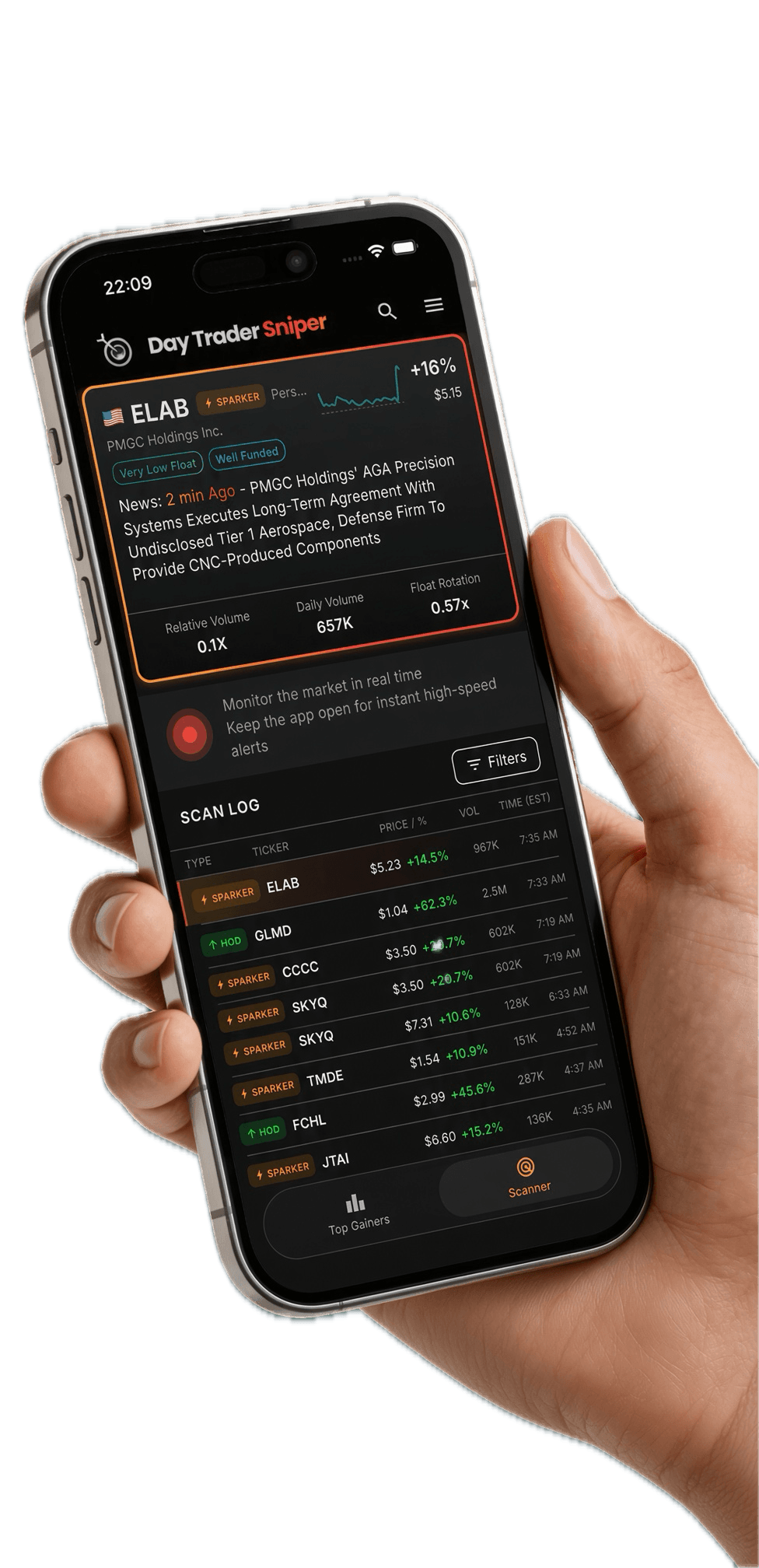
Help & Tutorials · Entry Checklist
How to use the Entry Checklist
Write the rules of your playbook so every alert and every Top gainers card is scored against them.
Use the Entry Checklist to check every alert and every Top gainers card against the rules you write. The checklist scores those rules. It does not tell you what to buy or sell, and it does not guarantee a result.
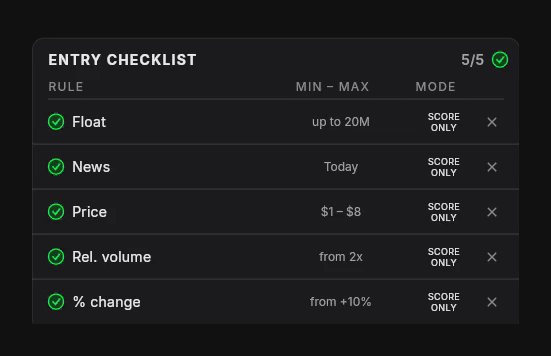
A name that matches the rules you wrote can sit on the same list as everything else. The Entry Checklist scores each ticker against your rules so those matches stand out. A common five-rule playbook is Price, Float, Relative volume, News, and Min change. A 5/5 means all five are met.
This article covers how to set your rules, how to read the score, and the difference between Score only and Hard filter.
Applies to iPhone, Android, and the web app.
Before you start
- Create an account and finish onboarding. You can set your Entry Checklist during the product tour, or leave it empty and add rules later.
- The checklist starts empty until you save rules. Until then, cards will not show a score, and no names are hidden.
- On a phone, keep the app open, or start a trading session, if you want alerts when you are not looking at the Scanner tab.
- Alerts arrive when the app is opened or when you start a trading session. Trading sessions and push notifications are available on iPhone and Android, not in the web app.
Open Entry Checklist
- Sign in.
- On a phone, open Profile (or the menu) and tap Entry Checklist.
- On a wide or desktop layout, choose Entry Checklist from the left menu.
- You can also tap the score pill on a Top gainers card or in the Scan Log ENTRY column, then tap Edit rules.
The screen title is Entry Checklist. The subtitle is Build your playbook.
Add or change your rules
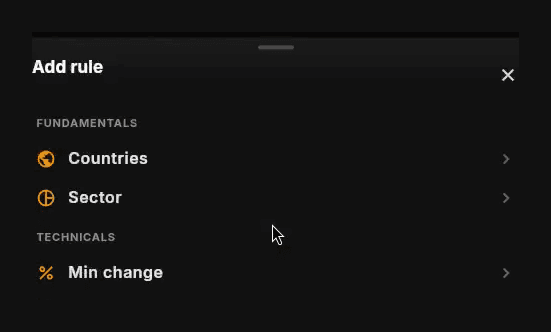
- If the list is empty, tap Add your first rule. Otherwise tap Add rule.
- Choose a rule from the groups in the picker:
- Fundamentals: Price, Float, Countries, Sector
- Signals: News
- Technicals: Min change, Relative volume, VWAP, EMA9, EMA20
- Set the value for that rule, then tap Done.
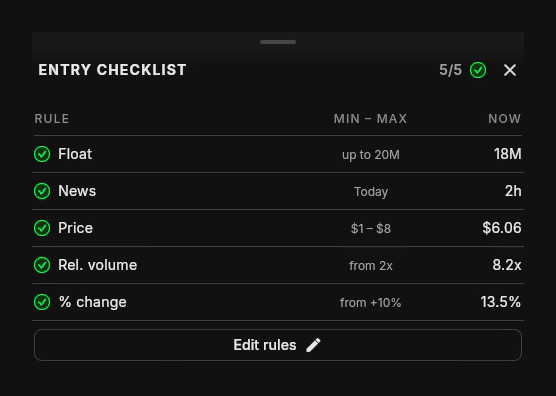
- Price is a last-trade price range. You can type a min and max, or use a quick pick such as $1–$8.
- Float is shares available for trading, in millions. You can type a range or use a quick pick such as under 20M.
- News asks for a headline within a window. The chips are Last 30 min, Last 3 hours, Today, and No News. Today is the default when you add the rule.
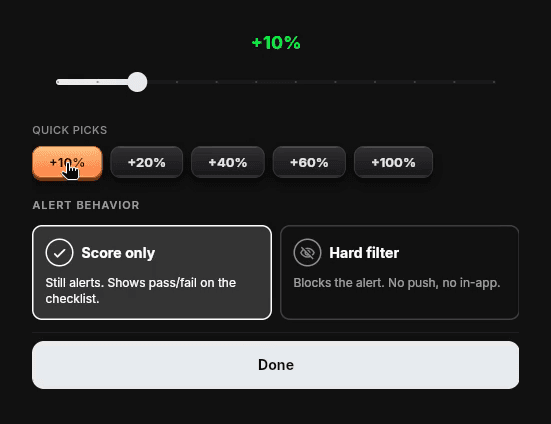
- Min change is the minimum % change a stock needs. It is the percent shown on the card — the live % on a Top gainers card, or the at-fire % on a Scan Log row or alert card. In the checklist list, this rule appears as % change.
- Relative volume is a minimum multiple of typical volume. In the checklist list, this rule appears as Rel. volume.
- VWAP, EMA9, and EMA20 require price to be above that level.
- You can add up to eight rules, and only one of each kind.
- Tap Save. You should see Profile saved. You can come back and update the rules at any time. Reset all clears the rules in the editor; save if you want that change to stick.
A common five-rule starting point is Price, Float, Relative volume, News, and Min change. During the product tour you may instead be guided to add Price $1–$10, Float 5M–50M, and News Today.
Score only versus Hard filter
On each rule sheet, under Alert behavior, choose how that rule should behave:
- Score only — You still get the alert. The name stays visible, and a miss just counts as not met on the checklist. This is the default.
- Hard filter — The alert is blocked. No push, and it does not appear as an in-app alert. It is also hidden from the Scanner list.
A failing name is hidden only when that rule is set to Hard filter. Use Score only when you still want to see names that miss a rule, with a short score on the card. Use Hard filter when you do not want those names to alert you or appear on the Scanner list.
Hard filters do not hide names from Top gainers. That list stays unfiltered. The score still appears on the card, so you can see what fits without losing the wider board.
If a hard-filter rule cannot be checked because some data is missing, the alert is not blocked. The checklist row shows NO DATA for that rule.
Read the score
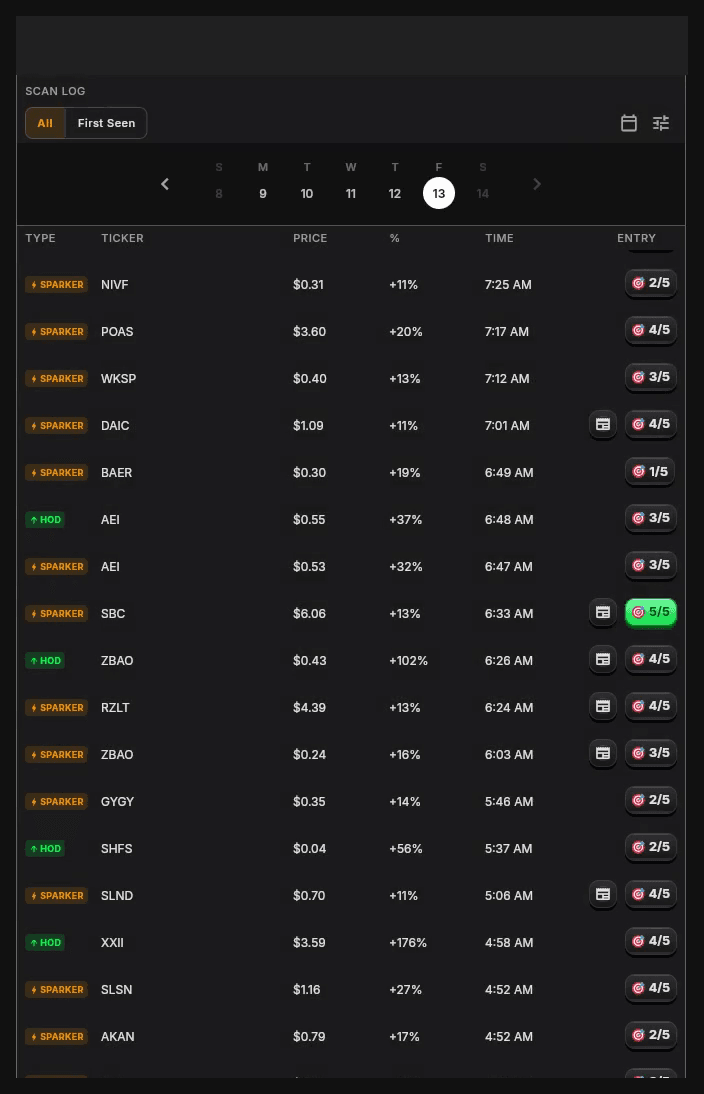
- After you save rules, a score pill appears on Top gainers cards and in the Scan Log ENTRY column. It looks like 5/5 or 2/5 — how many of your rules the name meets, out of how many you set.
- A full pass (for example 5/5, with the pill highlighted) means every rule you wrote is met. That is a match to your criteria, not a prediction or a signal to buy.
- A short score (for example 2/3) means one or more rules failed, or a rule has no data yet. Pass and wait for the next one, or open the sheet to see which row missed.
- Tap the pill to open the checklist. The header is ENTRY CHECKLIST plus the same fraction. Each row shows the Rule, the range you set (Min – max), and the current value (Now), with a pass, fail, or no-data mark.
- On a Scan Log row, the price and percent used for the score are the values from when the alert fired.
A simple session workflow
- Set and save your Entry Checklist.
- Open the app, or start a trading session on iPhone or Android, so alerts can arrive.
- When Sparker sounds, open the Stock Card and read the score.
- Open the checklist if you want to see which rules passed. Decide for yourself, or pass and wait.
- If you want more context on what else is running, switch to Top gainers — those cards are scored too, but the list is not filtered.
- If too many alerts arrive, switch the noisy rule to Hard filter.
FAQ
Does a full checklist score mean I should buy?
No. It means the name matches the rules you set. Outcomes are never guaranteed.
What is the difference between Score only and Hard filter?
Score only still sends the alert and shows pass or fail on the checklist. Hard filter blocks the alert (no push, no in-app) and hides the row from the Scanner list. Top gainers is never hidden by these rules.
Why don’t I see a score on the cards?
The checklist starts empty. Open Entry Checklist, add at least one rule, and save. The score pill is hidden until then.
Why did an alert disappear from the Scanner list?
A Hard filter may be hiding names that fail that rule. Open Entry Checklist and review each rule’s Alert behavior. Also confirm the app is open or a trading session is started if you expected a new alert.
Does Entry Checklist filter Top gainers?
No. Top gainers stays a live, unfiltered board. Your score still appears on the cards.
When do I get alerts?
Alerts arrive when the app is opened or when you start a trading session. Trading sessions and push notifications are available on iPhone and Android, not in the web app.
What happens if I start a session with no rules saved?
You will see a warning: You will get every single alert. You can tap Set my rules or Start anyway.
Can I change my rules after setup?
Yes. Open Entry Checklist at any time, or tap Edit rules from the score sheet, then save.
Need more help?
Email support@daytradersniper.com.
Was this helpful?
Still need help?
Email support@daytradersniper.com.