How to Use a Desktop Day-Trading Scanner Without Chasing Every Alert
Build a desktop day-trading scanner routine: read the catalyst, check your own rules, and keep the same alerts on your phone when you leave the desk.
A Bigger Screen Is Not a Trading Plan
Your scanner lights up. A headline lands. You open another tab, look for float, check volume, then return to a chart that already looks different.
Moving that routine from a phone to a desktop gives you more room. It does not fix the routine.
A desktop day-trading scanner is useful when it helps you answer the same questions in a consistent order: what happened, what is the market doing, and does this fit your own rules?
The goal is not to watch everything. It is to stop rebuilding the same research process every time an alert arrives. Desk for the open. Phone for the day job. One process across both.
Separate the Alert From the Decision
A scanner brings something to your attention. That is its job. Deciding whether you have enough context is still yours.
An audio alert can pull your attention toward a ticker. It cannot tell you whether the headline is meaningful, whether the spread fits your limits, or whether you are available to manage risk.
Keep those jobs separate:
- Alert: something needs a look.
- Context: you understand the news and the current activity.
- Checklist: you compare that situation with rules you wrote before the alert.
- Decision: you act on your own plan, or leave it alone.
That last option matters. A scanner can be doing its job even when you take no trade. You are filtering attention, not collecting reasons to click.
Build a Desk Routine Around Context
Before the open, decide what belongs in your workspace. Keep the scanner, the chart you use to read price action, and your own risk rules easy to find. Extra windows are not extra conviction.
Then use the same reading order when an alert arrives.
Start with the news. Read what actually changed, not just the most exciting word in the headline. A new event and a repeated announcement are different pieces of information.
Next, look at current activity. Price move, relative volume, float, float rotation and volume describe different parts of the situation. Relative volume compares activity with a baseline. Float describes the shares available for trading. Neither replaces reading the catalyst.
Finally, check the chart and your limits. A large move on the screen does not tell you whether the current spread, liquidity or risk fits your plan.
A larger display gives those questions room. Use that space to connect the information, not to add another feed you cannot follow.
Keep Your Checklist Yours
An entry checklist is most useful when its rules exist before the excitement.
Write down the conditions you personally need to see. Include the conditions that make you stop looking, too. If you cannot explain a rule without pointing at a flashing chart, it may be a reaction rather than a rule.
Useful questions include:
- Can you explain the catalyst in plain English?
- Does the current activity fit the setup you planned to study?
- Are the spread and liquidity within your own limits?
- Can you define the risk before taking any action?
- Are you actually available to manage the position?
A completed checklist is not permission from the software. It is a record of whether your own conditions are present. It cannot remove uncertainty or make a weak plan look sound.
Use Desktop and Phone for Different Moments
At the desk, you have space to read the headline and compare the surrounding context. Away from it, your attention may be split between work, travel and everything else in the day.
Do not confuse receiving an alert with having time to evaluate it.
Keep the reading order consistent across devices, but be honest about your circumstances. If you cannot read the news or assess risk, a smaller screen is not the main problem. Your availability is.
The practical benefit of the same alerts on desktop and phone is continuity. You do not need a different set of questions for each screen. The device changes. Your standards do not.
What That Looks Like in Sniper
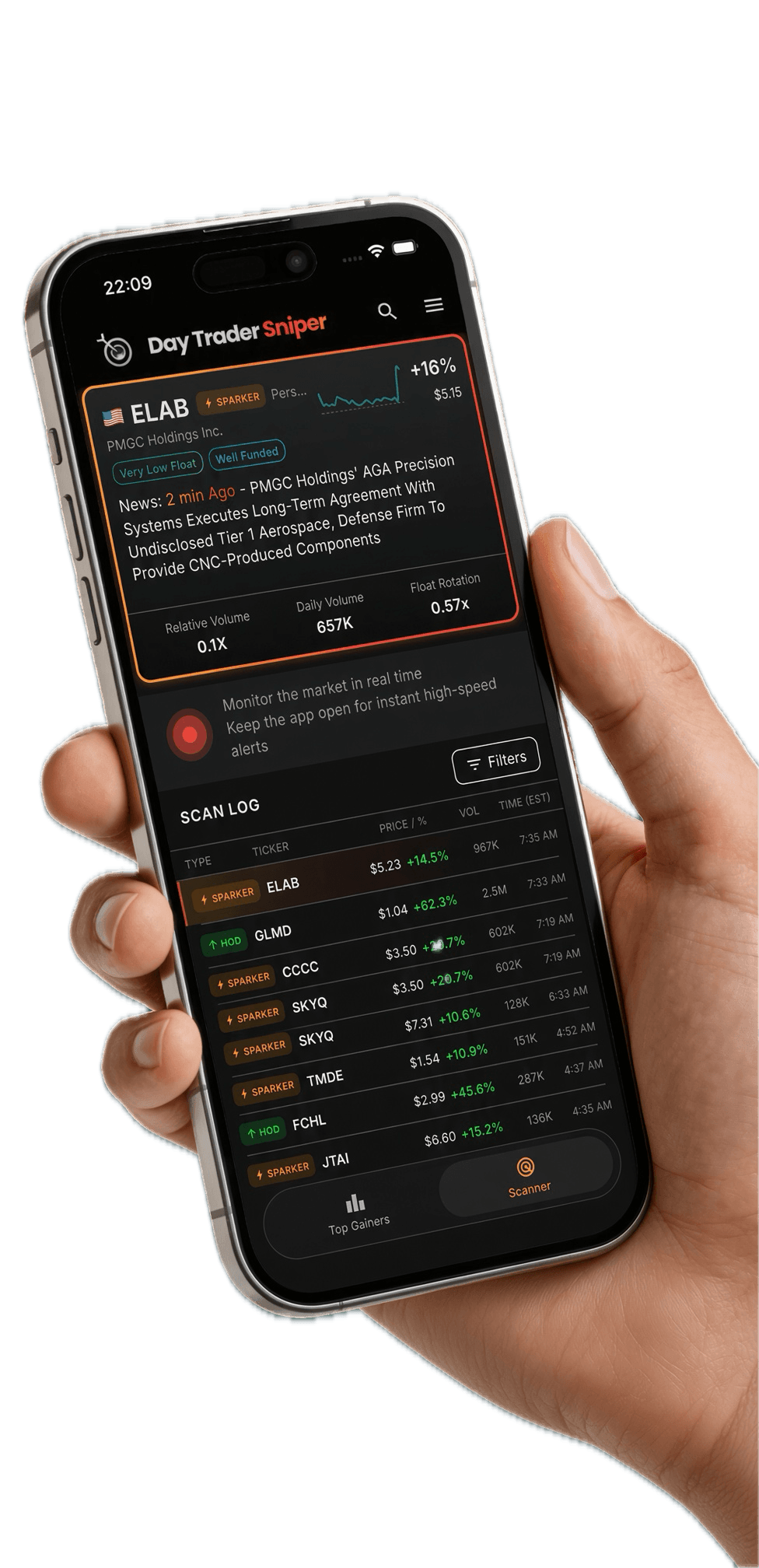
Day Trader Sniper brings the same alerts to desktop and phone. On desktop, Sparker provides a real-time audio alert, and the Stock Card brings the ticker context into the popup.
Read the Stock Card for price move, RVOL, float, float rotation, news and volume. Use Catalyst Analysis and Catalyst Classification to examine the context behind the headline. Then use the Entry Checklist to check your own rules.
Those are separate jobs, presented in one workflow. The alert gets your attention. The context gives you material to examine. The checklist keeps your own process visible.
None of that makes the decision for you. More information only helps when you read it with a plan.
The Takeaway
Use a desktop day-trading scanner to organize attention, not to chase every alert. Read the catalyst, examine the current activity, and check your own rules. Keep that routine when you move back to your phone.
If that workflow fits how you work, explore Day Trader Sniper on desktop and phone. Start Free Trial: 7-day free trial, card required, then $29.99/month. Cancel anytime.
Educational content only. Not financial advice. Trade at your own risk.