Help & Tutorials · Scanner and Scan Log
How to use the Scanner and Scan Log
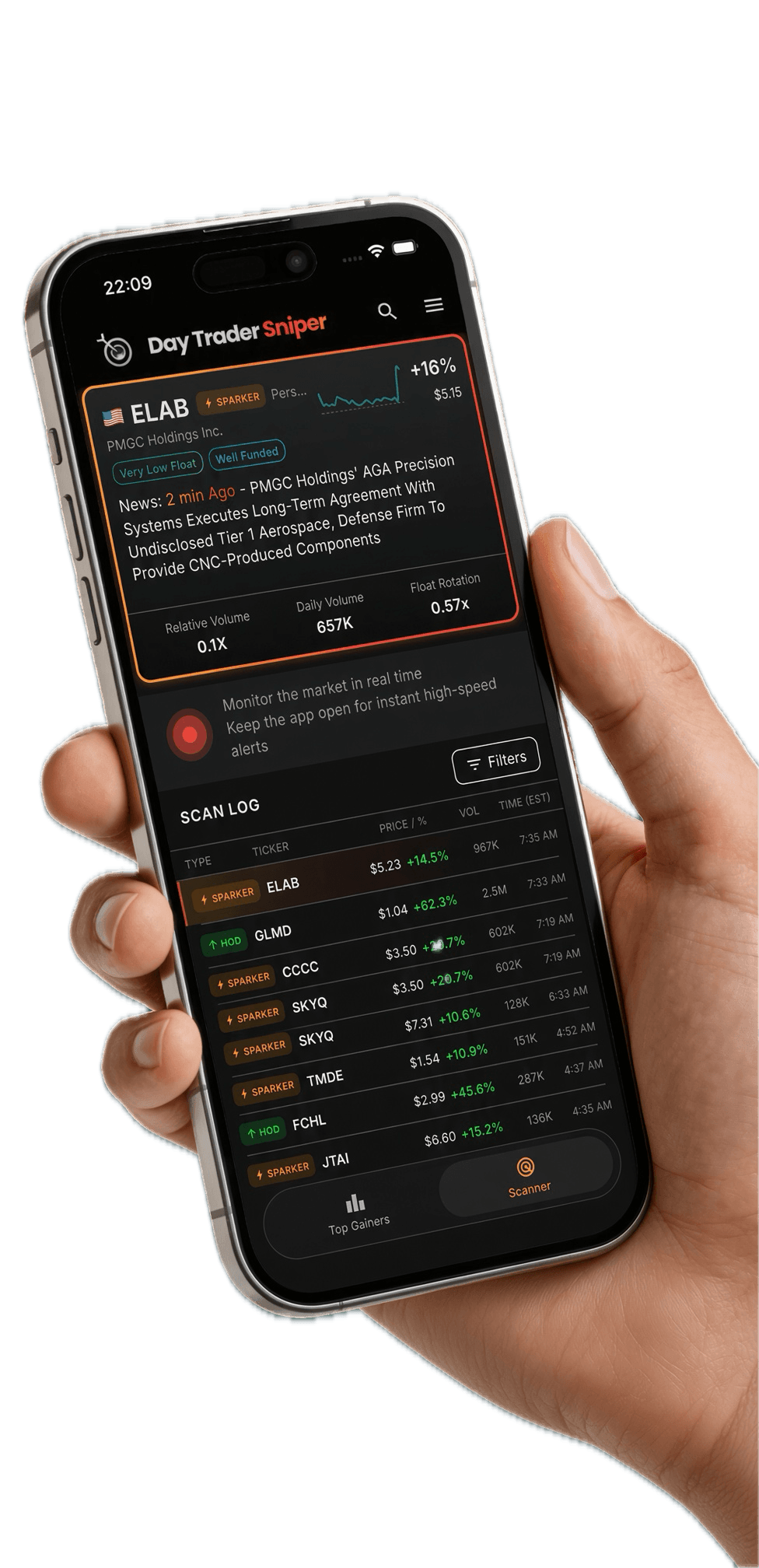
Open Top gainers and the Scanner tab, read Sparker and HOD alerts in the Scan Log, and choose which columns and news icon chips to show.
Use the Scanner and Scan Log to watch names that are moving now, and to review the Sparker and high-of-day alerts that already fired. The scanners surface data and check your rules. They do not tell you what to buy or sell, and they do not guarantee a result.
Day Trader Sniper has two scanner surfaces. Top gainers is a live board of names moving up. The Scanner tab shows the SCAN LOG of Sparker and HOD (high of day) alerts. Your Entry Checklist can score both, but it does not hide names from Top gainers.
This article covers how to open those surfaces, how to read the Scan Log, how to adjust columns, and what you see when you tap a news icon chip.
Applies to iPhone, Android, and the web app.
Before you start
- Create an account and finish onboarding. You can set your Entry Checklist during the product tour, or leave it empty and add rules later.
- On a phone, keep the app open, or start a trading session, if you want alerts when you are not looking at the Scanner tab.
- Alerts arrive when the app is opened or when you start a trading session. Trading sessions and push notifications are available on iPhone and Android, not in the web app.
Open the scanners
- Sign in and go to Home. That is the first screen after onboarding.
- On a phone, use the bottom bar:
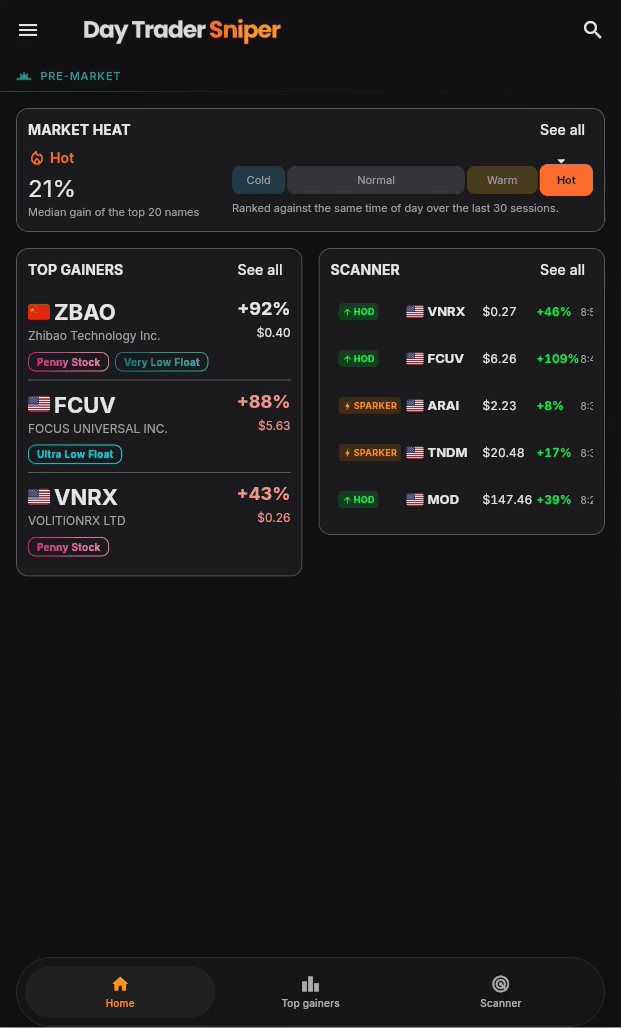
- Home — a short preview of Top gainers and the Scanner, plus Market heat.
- Top gainers — the full live list of names moving up.
- Scanner — the full Scan Log of Sparker and HOD alerts.
- On Home, you can also tap See all on either section.
- Tap a ticker to open its Stock Card.
On a wide or desktop layout, choose Top gainers or Scanner from the left menu. The Stock Card can open beside the list.
Read Top gainers
- Open the Top gainers tab. The list header is TOP GAINERS.
- Each card is a live gainer: ticker, price, percent change, and related context when it is available. Your Entry Checklist score can appear on the card, but the list itself is not filtered by those rules.
- The list updates as ranks change. Pull down to refresh.
- If the market is closed, the list may be empty until the next session.
- Tapping a card opens the Stock Card. Being on this list is not the same thing as receiving a Sparker or HOD alert.
Read the Scanner and Scan Log
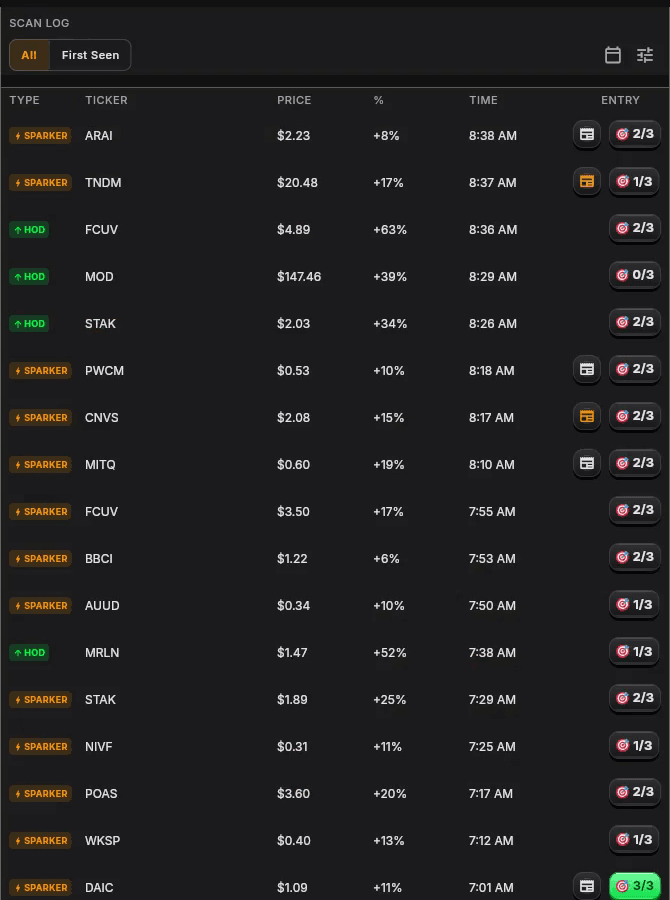
- Open the Scanner tab. The screen title is SCAN LOG. Rows are newest first.
- Check the TYPE badge:
- SPARKER — a once-a-day alert for a qualifying move. Sparker can play an in-app sound. It fires at most once per symbol per trading day.
- HOD — the name has made a new high of day and met the high-of-day rules. The same name can get more than one HOD alert, with a 10-minute cooldown between them.
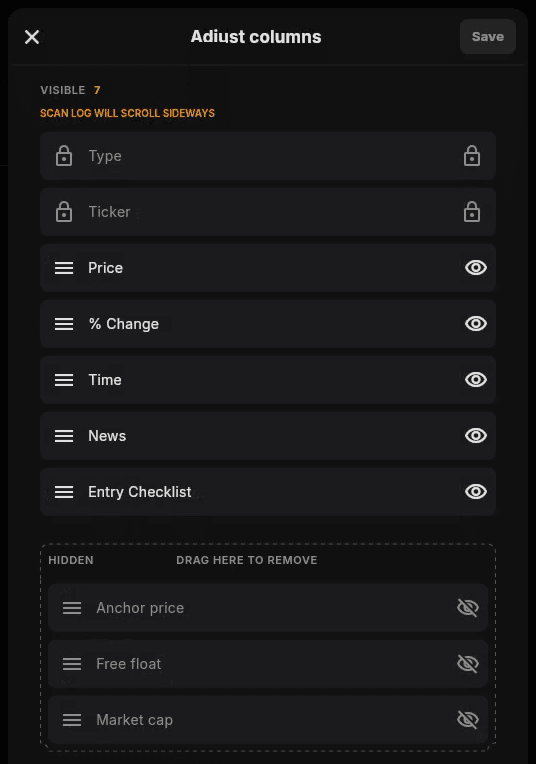
- The default columns are Type, Ticker, Price, %, Time, News, and Entry (your Entry Checklist score). Type and Ticker stay pinned.
- News appears as icon chips on each row. If there is no news, the chip is hidden. You can choose which columns to show. Tap a chip to open the headline popover, as described below.
- Tap the tune icon (Adjust columns) to show or hide Anchor price, Free float, and Market cap, then tap Save. On a narrower screen, the log can scroll sideways when more columns are visible.
- Use All to see every alert, or First Seen to focus on the first Sparker for each ticker. First Seen can show a recap of how many tickers, Sparkers, and HODs you have for the day.
- Price and percent on a Scan Log row are the values from when the alert fired.
Read a news icon chip
- On a Scan Log row, tap the newspaper icon in the News column. If a row has no news, the chip is hidden.
- A popover opens over the Scan Log. On a phone it is full width. On a wide or desktop layout it sits beside the row you tapped. Tap outside the popover, or go back, to close it.
- The popover shows the ticker, the SPARKER or HOD type, the price and percent from the alert, and the headline as News: plus how long ago it was published — for example, News: 2 hours ago - followed by the headline.
- When the headline has been classified, a Catalyst: line appears under it. That line describes the news. It is not a recommendation.
- Your Entry Checklist score is on the card. Tap the card, or View full breakdown, to close the popover and open the Stock Card.
Read a Stock Card
When an alert fires, or when you tap a ticker, the Stock Card brings the decision inputs together: the headline, a catalyst line when the headline has been classified, the numbers on the card, and your Entry Checklist score. The catalyst line describes the news. It is not a recommendation.
For how the score is built and how Score only differs from Hard filter, see How to use the Entry Checklist.
Entry Checklist on the scanners
The checklist starts empty until you save rules. A common five-rule starting point is Price, Float, Relative volume, News, and Min change.
- Score only — You still get the alert. The name stays visible, and a miss just counts as not met on the checklist. This is the default.
- Hard filter — The alert is blocked. No push, and it does not appear as an in-app alert. It is also hidden from the Scanner list.
Hard filters do not hide names from Top gainers. That list stays unfiltered. The score still appears on the card.
A full pass means the name matches the rules you set, not that you should buy. If you stop receiving alerts, a Hard filter may be hiding names that are outside your rules.
A simple session workflow
- Open the app, or start a trading session on iPhone or Android, so alerts can arrive.
- Open Home or Scanner as the session starts.
- When Sparker sounds, open the Stock Card.
- Read the headline and the catalyst line, then the numbers, then your checklist score.
- If you want more context on what else is running, switch to Top gainers — those cards are scored too, but the list is not filtered.
- Decide for yourself, or pass and wait.
FAQ
Do I need to build a scanner before Sparker works?
No. Sparker is a preconfigured live scanner. You set your own rules in the Entry Checklist, which checks each alert against them.
What is the difference between Top gainers and the Scanner tab?
Top gainers is a live list of names currently moving up. Your checklist can score those cards, but it does not hide names from the list. The Scanner tab is the Scan Log: Sparker and HOD alerts that already fired, with the at-the-time numbers, news icon chips, and your checklist score.
When do I get alerts?
Alerts arrive when the app is opened or when you start a trading session. Sparker can also play an in-app sound. Trading sessions and push notifications are available on iPhone and Android, not in the web app. If a rule is set to Hard filter, names that fail that rule will not alert and will not appear on the Scanner list.
Why am I not receiving alerts?
Confirm the app is opened or a trading session is started, and review your Entry Checklist Hard filters. Also check that you have not already had today’s Sparker on that symbol — Sparker fires at most once per symbol per trading day.
What happens when I tap a news icon chip?
A popover opens with the ticker, the alert type, and the headline as News: plus how long ago it was published. When the headline has been classified, a Catalyst: line appears under it. Tap the card or View full breakdown to open the Stock Card. Tap outside the popover to close it.
Can I change which Scan Log columns I see?
Yes. Open the Scanner tab, tap the tune icon (Adjust columns), show or hide columns, and save. News appears as icon chips when the News column is visible.
Can I change my filter after setup?
Yes. Open Entry Checklist at any time and update your rules to match the setups you trade. See How to use the Entry Checklist.
Does a full checklist score mean I should buy?
No. It means the name matches the rules you set. A catalyst line is also informational, not a recommendation. Outcomes are never guaranteed.
Need more help?
Email support@daytradersniper.com.
Was this helpful?
Still need help?
Email support@daytradersniper.com.